KT200PLUS OFFICIAL WORKSHOP GUIDE | ECU REPAIR INTAKE & RISK ASSESSMENT
KT200Plus ECU Repair Intake and Risk Classification Guide
ECU repair should begin with an assessment, not with an immediate write operation. Before connecting KT200Plus, technicians should understand the ECU condition, identify the available data, check communication behavior, and decide whether the job is suitable for OBD, Bench, Boot, or another supported method.
This guide presents a practical KT200Plus ECU repair intake procedure for workshops handling damaged, replaced, non-communicating, or partially programmed control units.
Why ECU Repair Intake Matters
An ECU that does not start may have different causes: low vehicle voltage, damaged wiring, corrupted software, interrupted programming, internal power failure, communication-line damage, or an incorrect replacement unit. These conditions require different technical decisions.
A structured intake process helps protect the original data, prevents unnecessary write attempts, and gives the workshop a clear record of the ECU condition before service.
Before beginning, review the official KT200Plus supported vehicles information and confirm that the required ECU and operation are listed.
KT200Plus ECU Repair Intake Checklist
| Assessment Area | Questions to Answer | Risk Indication |
|---|---|---|
| ECU identity | What are the part number, hardware number, software number, and processor? | Unknown identity increases protocol selection risk. |
| Physical condition | Are there signs of water, corrosion, impact, overheating, or opened covers? | Physical damage may affect power and communication. |
| Communication | Does the ECU respond to identification through any supported method? | No response requires controlled diagnosis before writing. |
| Original data | Is a complete original backup available? | No backup makes recovery or cloning more complex. |
| Service history | Was the ECU previously written, opened, modified, or exposed to a failed operation? | Previous work may change the expected data state. |
Step 1: Record the ECU Condition Before Powering It
Photograph the ECU from every side before applying power. Record the label, connector condition, housing damage, missing screws, signs of moisture, and any previous repair marks.
- Photograph the complete ECU label.
- Record all visible part and software numbers.
- Inspect connector pins for bending, corrosion, or contamination.
- Check whether the housing has been opened.
- Ask the customer what happened before the failure.
Do not clean, open, or modify the ECU before documenting its original condition unless the service procedure requires it.
Step 2: Classify the ECU Repair Risk
Classify the job before choosing a programming method. A simple classification helps technicians decide how much backup and recovery planning is required.
| Risk Level | Typical Condition | Recommended Approach |
|---|---|---|
| Low | ECU communicates normally and original data can be read. | Create a backup and follow the supported read/write procedure. |
| Medium | ECU responds intermittently or has unknown previous programming history. | Stabilize power and communication, then save all available data. |
| High | No communication, interrupted write, water damage, or incomplete backup. | Use controlled Bench or Boot diagnosis and contact technical support when needed. |
| Critical | Short circuit, severe physical damage, unknown processor, or repeated failed recovery. | Stop routine programming and perform specialist hardware assessment first. |
Step 3: Check Power and Ground Before Communication
Before testing communication, verify the power supply, main ground, ignition input, and required wake-up lines. A non-responsive ECU may simply be missing one required supply or ground reference.
For Bench or Boot work, use the correct wiring information and a stable power supply. Do not repeatedly apply power with an unverified harness.
Step 4: Test Identification Before Read or Write
Use the lowest-risk supported communication test first. If the ECU responds to identification, save the result before attempting a longer read or recovery operation.
- Connect the correct OBD, Bench, or Boot setup.
- Apply stable power and confirm the ECU remains powered.
- Open the official KT200Plus software.
- Select the exact ECU protocol.
- Read identification information.
- Save a screenshot and compare it with the label.
Do not begin writing simply because the software opens. The ECU response and identification must be consistent with the job record.
Step 5: Protect Every Available Original Data Source
If the ECU can be read, save the original data immediately. If the ECU cannot be read, collect every available source of information, including a previous backup, vehicle scan, replacement-unit data, or manufacturer identification.
| Data Source | How to Use It |
|---|---|
| Original ECU readout | Use as the primary backup and comparison reference. |
| Previous workshop backup | Check the vehicle, ECU number, date, and file source before using it. |
| Vehicle scan report | Use identification and fault information to support compatibility checking. |
| Replacement ECU data | Compare part number, hardware, software, and processor information. |
Step 6: Choose the Correct KT200Plus Operation
After the intake assessment, choose the operation that matches the problem and the supported protocol.
Read and backup
Use this path when the ECU communicates and the original data is available. Save the readout before any modification.
Write or calibration update
Use only a file that matches the ECU and operation. Confirm file size, checksum status, and stable power before writing.
Cloning or replacement preparation
Compare the original and replacement ECU identification. Confirm that the supported procedure transfers the required data areas.
Recovery
For an interrupted or corrupted operation, follow a documented recovery method. Do not repeatedly write files without confirming the current ECU state.
Step 7: Document the Repair Result
After the operation, record the final condition of the ECU. A professional repair record should show what was received, what was tested, what was changed, and what was verified.
- Original ECU condition and label photographs
- Initial communication result
- Selected software and protocol
- Connection mode and wiring setup
- Original and final file names
- Final identification and diagnostic result
- Any remaining limitations or customer instructions
KT200Plus Software and Support Resources
Use the official KT200Plus software download page for the KTflash installer and dongle driver. The official page recommends installing the driver when required before connecting the dongle and opening the software.
For common questions about supported functions, cloning, free updates, technical support, and official ECUHELP websites, review the KT200Plus FAQ.
KT200Plus and KT200II for ECU Recovery Work
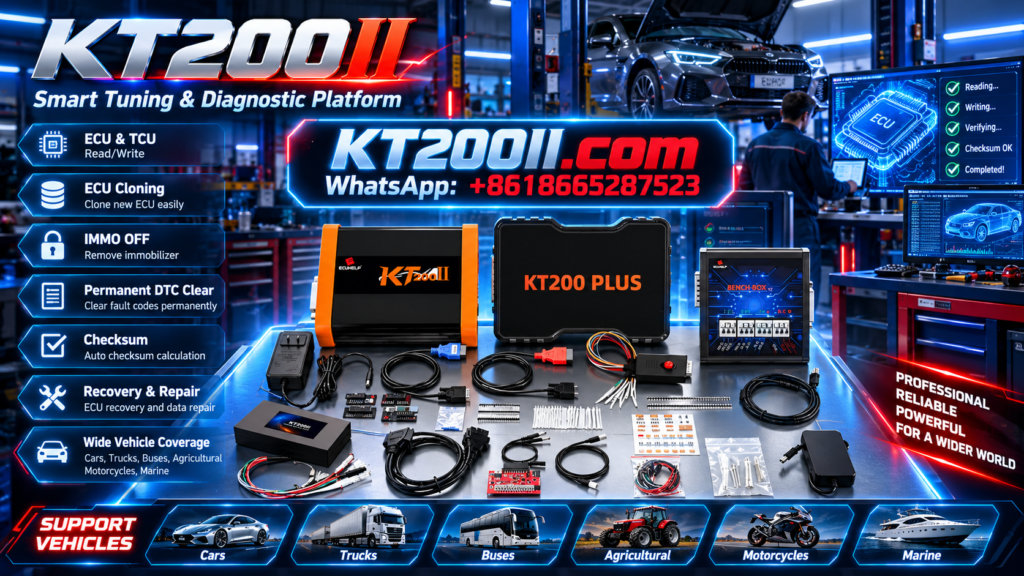
KT200Plus is suitable for its supported ECU and TCU programming workflows, including selected Bench and Boot operations. If your workshop needs a broader multi-mode ECU and TCU programming platform, compare the official KT200II ECU Programmer.
You can also review the KT200II operation modes, KT200II support list, and KT200II software resources before selecting your workshop equipment.
Buy the Official KT200Plus ECU Programmer
Purchase KT200Plus through the official HELPECU KT200Plus product page. Before ordering, send the vehicle, ECU, and required operation details to the ECUHELP team for a compatibility check.
For technical questions, contact WhatsApp +86 18665287523.