KT200Plus Official Technical Guide
KT200Plus ECU Post-Programming Verification and DTC Review Guide
A successful write or cloning message is only one part of a professional ECU service. After programming, technicians should verify ECU communication, review diagnostic trouble codes, inspect relevant live data, and confirm the vehicle functions related to the repair.
Why Post-Programming Verification Matters
ECU and TCU programming can change software, calibration, configuration, or memory data. A control unit may complete the writing process but still require an ignition cycle, a diagnostic scan, adaptation procedure, or functional test before the job can be considered complete.
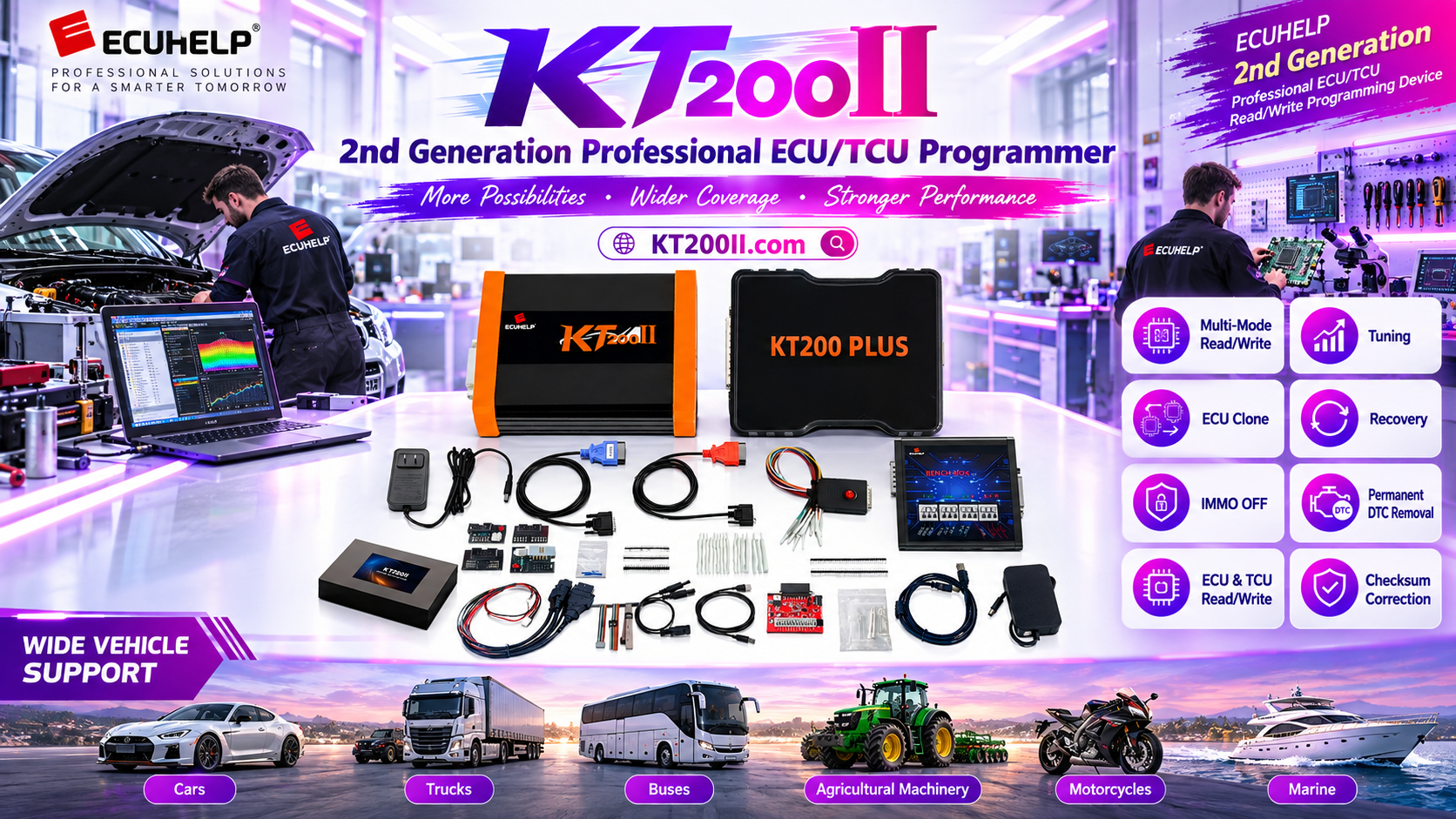
KT200Plus is designed for professional ECU and TCU reading, writing, cloning, supported DTC clearing, and authorized IMMO service operations. The official KT200Plus Features page provides an overview of the tool’s supported workflow, while the Supported Vehicles page should be checked before every new vehicle operation.
Post-Programming Verification Checklist
| Check | What to Confirm | Record |
|---|---|---|
| ECU identification | Part number, software information, hardware information, and communication | Final identification screenshot |
| DTC scan | Stored, pending, current, and returning fault codes | Before-and-after scan report |
| Live data | Relevant voltage, speed, temperature, pressure, or sensor values | Abnormal values and test conditions |
| Vehicle function | Starting, idle, throttle, shifting, or other applicable functions | Stationary or road-test result |
Step-by-Step Verification Procedure
1. Save the Original Scan and ECU Information
Before programming, save the original ECU identification and diagnostic scan whenever possible. Record existing DTCs, customer symptoms, battery voltage, and the ECU or TCU part number. This reference helps separate pre-existing issues from conditions that appear after programming.
2. Complete the Required Restart Procedure
After reading, writing, or cloning, follow the software instructions for ignition cycling, power removal, or ECU restart. Do not disconnect the vehicle or bench setup earlier than instructed. Keep the power supply stable until the operation and shutdown sequence are complete.
3. Read the ECU Identification Again
Reconnect with the appropriate diagnostic method and confirm that the ECU or TCU is visible. Compare the final hardware and software information with the job record. If the control unit is not detected, stop and check the connection mode, power, ground, connector seating, and supported protocol before attempting another write.
4. Perform a Complete DTC Scan
Scan the vehicle or module after the ECU has restarted. Record all codes before clearing them. Classify each code as historical, pending, current, or immediately returning. KT200Plus supports one-click DTC clearing for supported vehicles, but clearing a code should not replace diagnosis or documentation.
5. Review Live Data
Check live data related to the repaired system. Depending on the vehicle, this may include supply voltage, engine speed, coolant temperature, throttle position, rail pressure, boost pressure, or transmission data. Compare the values with manufacturer service information and the actual test conditions.
6. Confirm Warning Lamps and Module Communication
Check whether the engine, transmission, immobilizer, ABS, or other relevant warning lamps remain active. Scan related modules when appropriate, because a programming operation may affect communication between the engine ECU, TCU, immobilizer, gateway, or body control module.
7. Complete a Controlled Functional Test
Perform the function related to the original repair. This may include engine starting, idle stability, throttle response, charging behavior, transmission engagement, or another manufacturer-approved test. Follow workshop safety procedures and do not perform a road test until the vehicle is safe to operate.
8. Save the Final Job Record
Store the final ECU identification, scan report, file name, programming method, DTC status, and functional-test result. A complete record makes future troubleshooting easier and provides the customer with a clear explanation of the service.
Common Results and Recommended Actions
| Result | Recommended Action |
|---|---|
| ECU identification is correct and no new DTC appears | Complete the functional test and close the job with the final report. |
| A DTC returns immediately after clearing | Check wiring, power supply, sensors, related modules, and vehicle-specific service data. |
| The ECU is not detected after programming | Verify power, ground, cable, connection mode, software version, and supported protocol. |
| The vehicle starts but a function is abnormal | Compare live data, confirm the correct file, and inspect related control modules. |
Use the Correct KT200Plus Resources
Before starting a new operation, check the official KT200Plus Supported Vehicles database for the vehicle, ECU or TCU type, and required operation. Use the KT200Plus Software Download page to obtain the official installer and dongle driver.
For technicians who need additional ECU and TCU programming methods, the official KT200II ECU Programmer provides Bench, Boot, OBD, JTAG, and BDM workflows on supported control units.
Official Purchase and Technical Support
KT200Plus is developed for professional ECU and TCU reading, writing, cloning, DTC clearing, and authorized IMMO service work. To purchase a genuine device, visit the HELPECU KT200Plus Official Store.
For compatibility confirmation, software installation, activation, connection, or post-programming questions, contact the official team through WhatsApp +86 1866527523. Send the vehicle brand, model, year, engine or transmission, ECU/TCU number, software version, and a clear description of the issue.