KT200 Plus DSG TCU Programming Guide
KT200 Plus DQ500 DSG TCU Programming Guide: OBD, Bench, Backup and Cloning
A structured workshop workflow for identifying a DQ500 transmission controller, checking KT200 Plus protocol support, selecting the correct connection mode and protecting original TCU data.
DQ500 is a dual-clutch transmission family encountered in professional gearbox repair, calibration, mechatronic replacement and transmission-control-unit service.
A DQ500 programming job should not begin by selecting the first software entry containing “DQ500.” Different vehicle applications, transmission revisions, TCU part numbers, hardware versions and software versions can require different protocols or data operations.
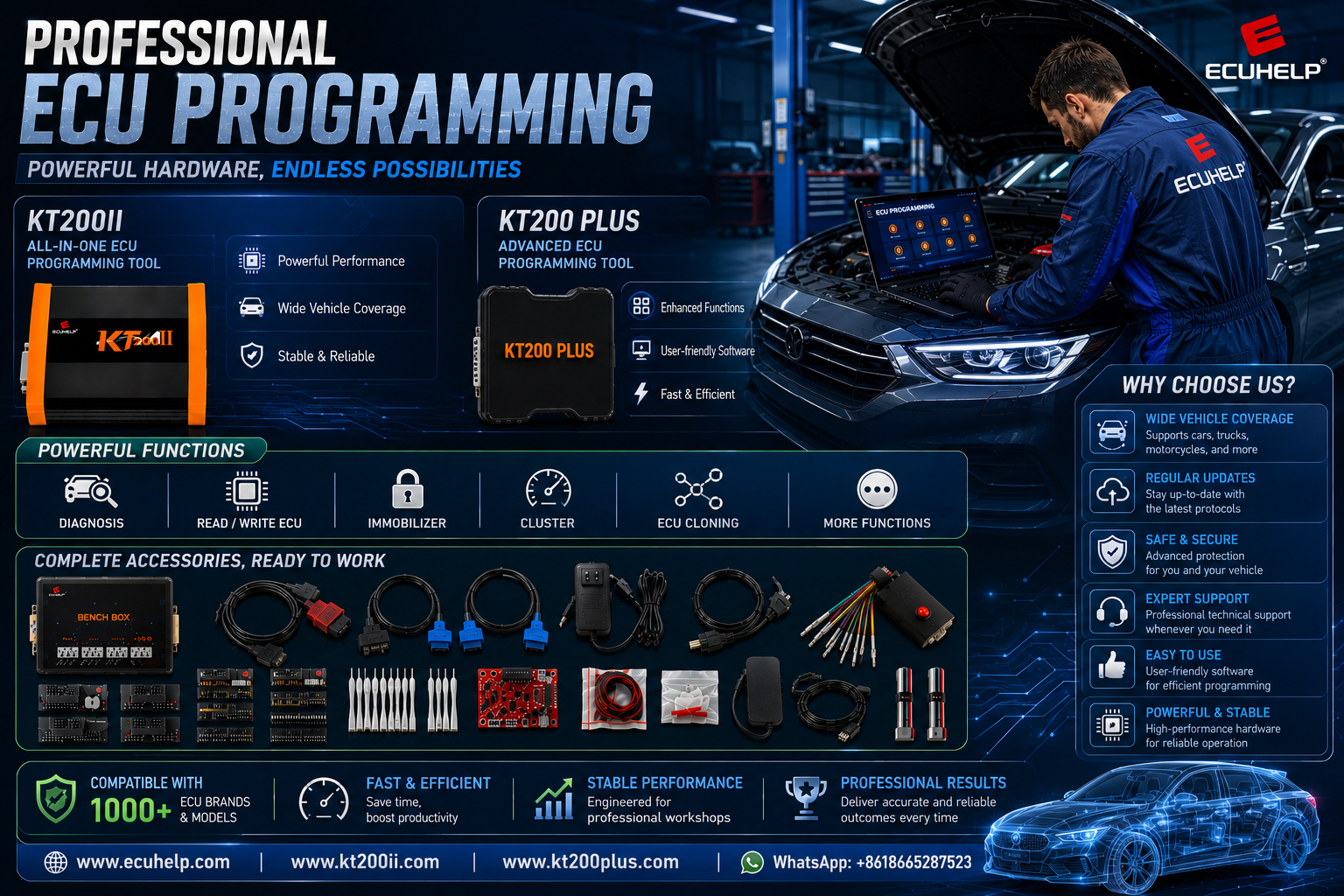
KT200 Plus supports professional ECU and TCU programming through compatible OBD, Bench, Boot and JTAG protocols. The exact identification, reading, writing, backup or cloning functions available for a DQ500 controller depend on the specific protocol shown in the software and support database.
This guide explains how to prepare a professional KT200 Plus DQ500 job without assuming that every DQ500 mechatronic unit uses the same connection or file.
Identify the exact transmission and TCU first, search DQ500 in the KT200 Plus protocol database, and confirm the listed Read, Write, OBD, Bench, backup or cloning functions. Save TCU identification and all available original data before programming or transferring data to a replacement unit.
What Is a DQ500 TCU?
DQ500 refers to a DSG transmission family rather than one universal transmission controller. The TCU manages supported gearbox functions such as clutch operation, hydraulic control, gear selection, torque coordination, shift behavior and communication with other vehicle systems.
Depending on the transmission version, the controller may contain:
- Main transmission software
- Calibration data
- Hardware and software identification
- Transmission configuration
- Adaptation-related information
- Vehicle-specific or immobilizer-related data where applicable
- Diagnostic and programming information
The exact memory structure and available KT200 Plus operations must be confirmed from the controller-specific protocol.
Start with Exact DQ500 Identification
A professional programming decision should be based on the real transmission controller rather than only the gearbox family name.
Record the following information before connecting KT200 Plus:
- Vehicle manufacturer and model
- Production year
- Engine information
- Transmission or gearbox code
- Complete mechatronic or TCU part number
- Hardware number
- Software number
- Controller manufacturer
- Current vehicle and transmission condition
- Required Read, Write, Backup, Clone or Recovery operation
Two controllers described as DQ500 can have different part numbers, hardware revisions, software versions and programming requirements. Do not use a file, wiring diagram or protocol only because the broad transmission family matches.
How to Search DQ500 in KT200 Plus
Use the official KT200 Plus Supported Vehicles and Protocol Database before preparing the connection.
Useful search directions include:
- DQ500
- DSG DQ500
- Vehicle manufacturer plus DQ500
- Transmission code
- Complete TCU part number
- DQ500 OBD
- DQ500 Bench
- DQ500 Read or Write
- DQ500 Clone
If several entries appear, compare the complete protocol information instead of selecting the first result.
| Protocol Detail | What to Compare | Why It Matters |
|---|---|---|
| Vehicle Application | Manufacturer, model, year and drivetrain | Separates different gearbox applications |
| TCU Identity | Part number, hardware and software | Helps verify the correct controller variant |
| Connection Mode | OBD, Bench or another listed mode | Determines wiring and power preparation |
| Read Operation | Virtual or physical data and memory area | Defines what the resulting file contains |
| Write Operation | Required format and supported method | Prevents loading an unsuitable file |
| Clone Function | Dedicated clone or required memory data | Determines whether a complete transfer is possible |
KT200 Plus DQ500 OBD vs Bench Programming
The correct mode should come from the exact supported protocol and the operation required.
| Comparison | OBD Mode | Bench Mode |
|---|---|---|
| Connection | Vehicle diagnostic connector | Direct TCU or mechatronic connector |
| Controller Removal | Normally not required | May require access outside the normal vehicle network |
| Power Source | Vehicle electrical system with battery support | Regulated external power according to the protocol |
| Main Check | Vehicle voltage, ignition state and network stability | Exact pinout, connector orientation, power and communication |
| Typical Benefit | Convenient vehicle-side access where supported | Controlled direct TCU communication |
Review the KT200 Plus OBD vs Bench vs Boot Guide before choosing the connection method.
DQ500 OBD Programming Preparation
When the exact DQ500 protocol provides the required OBD operation, prepare the complete vehicle electrical environment.
- Confirm the exact vehicle and transmission controller
- Connect suitable stabilized battery support
- Switch off unnecessary electrical consumers
- Keep the diagnostic connector and USB cable secure
- Connect the programming computer to reliable power
- Disable sleep, hibernation and automatic restart
- Follow every ignition instruction displayed by KT200 Plus
- Do not disturb the selector, pedals or vehicle controls unless instructed
Successful identification does not prove that vehicle voltage will remain stable during a longer erase or Write operation.
DQ500 Bench Programming Preparation
Bench Mode requires direct communication with the transmission controller. The exact wiring diagram associated with the selected KT200 Plus protocol must be used.
Confirm Before Applying Power
- The complete DQ500 controller is identified
- The correct KT200 Plus protocol is selected
- The connector viewing direction is understood
- Pin 1 and connector orientation are confirmed
- Every required positive supply is connected
- Every ignition or wake-up supply is connected
- All required grounds are connected
- CAN High, CAN Low or other communication lines are confirmed
- A regulated power supply is prepared
- Cables cannot move during reading or writing
Never reuse a DQ500 wiring diagram from another controller unless it matches the exact KT200 Plus protocol and real connector. Similar mechatronic housings or connectors do not prove identical terminal assignments.
Read and Save DQ500 Identification
When the protocol provides TCU identification, save it before reading or writing transmission data.
Useful identification may include:
- Transmission or TCU family
- OEM part number
- Hardware number
- Software number
- Calibration or dataset information
- Protocol identification
- Vehicle-related information where displayed
Store the identification screenshot together with the TCU label photograph, selected protocol and original files.
Back Up the Original DQ500 Data
Before programming or replacement, save every original memory area made available by the confirmed protocol and required for the job.
| Backup Item | Purpose | Recommended Handling |
|---|---|---|
| TCU Identification | Hardware and software reference | Save screenshot and text record |
| Flash or Program Data | Original software and calibration where provided | Keep the verified master unchanged |
| EEPROM or Configuration | Controller-specific or adaptation-related data where supported | Store separately from Flash |
| Full Backup | Protocol-specific complete recovery or clone data | Label with protocol, mode and date |
| Donor Identification | Replacement-controller comparison | Keep separate from original TCU data |
Virtual Read vs Physical Read for DQ500
If the selected protocol provides Virtual Read, identify the resulting file accurately.
A Virtual Read may provide matching stock software according to TCU identification. A physical read transfers the supported data directly from the connected controller.
Do not rename a Virtual Read file as a complete physical backup. It may not contain every memory area required for cloning, vehicle-specific configuration or deep recovery.
Review the KT200 Plus Virtual Read vs Physical Read Guide before selecting a source file.
KT200 Plus DQ500 Cloning Preparation
TCU cloning is not always a simple full-file transfer. The exact procedure depends on the controller, available memories, donor compatibility and dedicated functions provided by the protocol.
Compare Original and Donor Controllers
- Complete DQ500 or TCU designation
- OEM part number
- Hardware number
- Software family
- Transmission application
- Connector and physical revision
- Memory operations available for both units
- Dedicated KT200 Plus clone function where provided
A donor that looks identical may still use a different hardware or software revision. Do not write original-controller data to the donor until the required compatibility and transfer procedure have been confirmed.
Verify the DQ500 File Before Writing
Before clicking Write, compare the selected file with the real TCU and the exact memory operation.
- The file source is known
- The exact DQ500 controller matches
- The vehicle and transmission application match
- The hardware number is compatible
- The software family is confirmed
- The correct Flash, EEPROM or other memory area is selected
- The file size and format match the protocol requirement
- Virtual and physical files are not confused
- Donor compatibility has been confirmed
- The checksum workflow is understood
- The original master remains unchanged
- A controller-specific recovery plan is available
A correct checksum does not independently prove that a TCU file is compatible. Verify the controller, hardware, software, memory area and file source first.
Professional KT200 Plus DQ500 Workflow
| Step | Action | Required Record |
|---|---|---|
| 1 | Identify the vehicle and transmission | Vehicle, engine, gearbox code and service objective |
| 2 | Photograph the controller label | Complete TCU and OEM part numbers |
| 3 | Search the KT200 Plus database | Exact protocol screenshot |
| 4 | Confirm the connection mode | OBD or Bench preparation |
| 5 | Read TCU identification | Hardware, software and calibration data |
| 6 | Back up original memory | Original files, sizes and completion messages |
| 7 | Verify donor or Write file | File source and compatibility record |
| 8 | Write with stable communication | Exact file and programming result |
| 9 | Complete post-programming checks | Diagnostic scan, adaptation and test result |
Post-Programming DQ500 Checks
A successful KT200 Plus message confirms completion of the software operation, but the transmission-control service may require additional vehicle procedures.
Depending on the repair and vehicle, complete the applicable steps:
- Follow the safe power-down sequence
- Reconnect and reinstall the controller correctly
- Perform a complete diagnostic scan
- Clear relevant stored faults after diagnosis and repair
- Complete required coding or configuration
- Complete clutch or transmission adaptations where specified
- Check selector and gear-position information
- Verify communication with engine and drivetrain controllers
- Perform a controlled functional or road test
- Scan the vehicle again after testing
Programming does not replace mechanical, hydraulic or electrical diagnosis. A damaged clutch, solenoid, wiring circuit, sensor or hydraulic component cannot be repaired by writing a TCU file.
Common KT200 Plus DQ500 Mistakes
- Selecting a protocol from the DQ500 name alone
- Ignoring the complete TCU part number
- Using a wiring diagram from a similar mechatronic unit
- Beginning an OBD Write without stable battery support
- Confusing Virtual Read with a physical full backup
- Backing up only one available memory area
- Matching donor controllers by housing appearance
- Writing a file because its size matches
- Modifying the only original backup
- Skipping required coding or adaptation after replacement
Frequently Asked Questions
Can KT200 Plus program DQ500?
Search the exact DQ500 controller in the KT200 Plus protocol database and confirm the displayed identification, Read, Write, OBD, Bench, backup or cloning functions. Availability depends on the controller-specific protocol.
Can DQ500 be programmed through OBD?
Use OBD only when the exact supported protocol provides the required vehicle-side operation. Do not assume that every DQ500 controller has the same OBD functions.
Can KT200 Plus read DQ500 in Bench Mode?
Use Bench where the confirmed protocol provides direct TCU communication. Follow the exact connector orientation, wiring and power instructions shown for that controller.
Can I clone a DQ500 mechatronic controller?
Cloning depends on donor compatibility and the exact data or dedicated function provided by the protocol. Compare original and donor hardware, software, part numbers and memory operations first.
Is a Virtual Read enough for DQ500 cloning?
Do not assume so. A Virtual Read may provide stock software without every configuration or vehicle-specific memory area required for a complete clone.
Should I save the original DQ500 files before writing?
Yes. Save TCU identification and every useful original memory area made available by the confirmed protocol before changing data.
Where can I download KT200 Plus software?
Use the official KT200 Plus Software Download page for the installer and dongle driver.
Where can I buy KT200 Plus?
Purchase KT200 Plus through the ECUHELP official global store.
KT200 Plus and KT200II Workshop Resources
KT200 Plus is designed for advanced ECU and TCU programming workflows, including compatible DQ500 research and service operations. Workshops that also use KT200II can access its dedicated product information, operation modes, software and searchable compatibility resources through the KT200II official website.
For KT200 Plus functions, supported controllers, software resources and frequently asked questions, continue using the official KT200PLUS.COM navigation pages.
Final Thoughts
A reliable KT200 Plus DQ500 programming job begins with the exact transmission controller rather than the broad gearbox family name.
Record the vehicle, gearbox code, TCU part number, hardware and software information. Search the complete controller in the KT200 Plus database and confirm the actual programming mode and available operations.
For OBD programming, maintain stable vehicle voltage and follow every ignition instruction. For Bench programming, verify connector orientation, power, grounds and communication wiring before applying voltage.
Before writing or cloning, preserve TCU identification and every available original memory area. Compare donor hardware and software carefully, and never rely only on housing appearance, filenames or file size.
After programming, complete diagnostic, coding, adaptation and functional checks required by the actual vehicle and repair procedure.
KT200 Plus Official Resource Hub
Check DQ500 Support Before Programming
Search the exact transmission controller, review KT200 Plus features and choose the appropriate official product configuration for your workshop.
Search KT200 Plus Support View KT200 Plus Features Buy KT200 PlusProfessional and Authorized Use Notice: TCU identification, reading, writing, calibration, cloning, replacement and recovery should only be performed by trained technicians for lawful and authorized vehicle service. DQ500 functions, memory operations, connection methods, coding and adaptation requirements depend on the exact transmission controller, hardware revision, software version, vehicle application and selected KT200 Plus protocol.