KT200PLUS OFFICIAL TECHNICAL GUIDE | VIRTUAL READ & WRITE WORKFLOW
KT200Plus Virtual Read and Write Workflow Guide
Some ECU programming jobs do not use a complete physical readout from the vehicle controller. Instead, the software may use a virtual read or virtual write procedure based on the identified ECU, software version, and supported protocol.
This guide explains a controlled KT200Plus virtual read and write workflow for technicians who need to prepare files, confirm compatibility, and verify the result before returning a vehicle.
What Is Virtual Read and Write?
Virtual reading is a software-assisted workflow in which the programming system uses the ECU identification and a supported database or protocol procedure to determine the correct data path. It does not necessarily mean that every memory area has been physically read from the ECU.
Virtual writing uses the supported information and target file required by the selected ECU protocol. Availability depends on the vehicle, ECU type, software version, operation, and KT200Plus support status.
Always verify the exact application in the official KT200Plus supported vehicles section before starting.
Virtual Read and Write Checklist
| Checkpoint | Technician Action | Why It Matters |
|---|---|---|
| ECU identification | Record part number, software number, hardware number, and processor. | Virtual operations depend on exact identification. |
| Supported protocol | Confirm the ECU, operation, and connection method are listed. | Not every ECU supports virtual access. |
| Target file | Check file identity, size, version, and checksum status. | Prevents an unrelated file from being written. |
| Power and connection | Use the documented OBD, Bench, or Boot setup with stable power. | Virtual does not remove electrical communication risks. |
| Post-write result | Read identification again and save the final status. | Confirms the controller responds after the operation. |
Step 1: Identify the Exact ECU
Start by recording the vehicle brand, model, year, engine, transmission, ECU manufacturer, part number, software number, hardware number, and processor. Take clear photos of the ECU label and connector.
Do not use only the vehicle name to select a virtual procedure. Different production years or engine versions may use different ECU software and memory layouts.
- Save the ECU label photo in the job folder.
- Record the complete ECU identification shown by the software.
- Note whether the ECU is original or a replacement unit.
- Write down the required operation: tuning, cloning, recovery, or replacement programming.
Step 2: Confirm KT200Plus Support
Search the supported vehicle information before connecting a target file. Confirm the exact ECU family, software version, operation, and available connection mode.
If the support result is unclear, contact the official team with the vehicle details and ECU label photos. A virtual procedure should not be assumed simply because a similar controller appears in the database.
For software installation and the official driver, visit the KT200Plus Software Download page.
Step 3: Perform Identification Before Virtual Reading
Connect the ECU using the documented OBD, Bench, or Boot method and perform identification first. The ECU must respond correctly before a virtual read or write workflow is selected.
- Connect the correct harness or diagnostic cable.
- Apply stable power to the vehicle or bench ECU.
- Open the KT200Plus software.
- Select the matching ECU protocol.
- Read the ECU identification.
- Compare the result with the label and job record.
Step 4: Prepare the Virtual File
After identification, confirm that the virtual procedure points to the correct ECU and software version. Save any original identification data and reference information before selecting the target file.
| File Check | What to Confirm |
|---|---|
| File identity | The file belongs to the identified ECU and requested operation. |
| Memory area | The file represents the memory area required by the protocol. |
| File size | The size is consistent with the selected ECU procedure. |
| Checksum | The supported checksum or integrity status is acceptable. |
Step 5: Control Power During Virtual Writing
Virtual writing still requires stable electrical communication. Keep the power supply, ECU, KT200Plus dongle, USB connection, and programming harness stable until the software reports completion.
- Do not switch off the ignition during vehicle-side programming.
- Do not disconnect the bench or boot harness.
- Do not remove the KT200Plus dongle while software is active.
- Do not allow a weak battery to supply the ECU during a long operation.
- Do not force-close the software if the progress indicator pauses briefly.
Step 6: Verify the ECU After Writing
When the software reports that the write is complete, perform a final verification before removing power. Where supported, read the ECU identification again and compare the result with the expected target.
- Confirm the final software message.
- Read the ECU identification again.
- Check hardware and software numbers.
- Review the file or operation status.
- Run a diagnostic scan when required by the service procedure.
- Save screenshots and notes for the customer record.
For cloning work, confirm that the replacement ECU responds as expected and that the required data transfer has been completed according to the supported protocol.
Common Virtual Read and Write Errors
The ECU is identified, but no virtual procedure is available
Check the exact ECU software number, processor, and supported vehicle entry. Contact support if the identification does not match the available procedure.
The virtual file size does not match the expected data
Stop and confirm whether the file represents a different memory area or software version. Do not write an unexplained file.
Communication fails during virtual writing
Check power stability, connector seating, cable condition, and the selected communication mode. Record the error before attempting another operation.
The ECU does not respond after the operation
Keep the original identification and backup information available. Contact official support with the exact procedure, software version, error message, and wiring details.
KT200Plus and KT200II Workshop Options
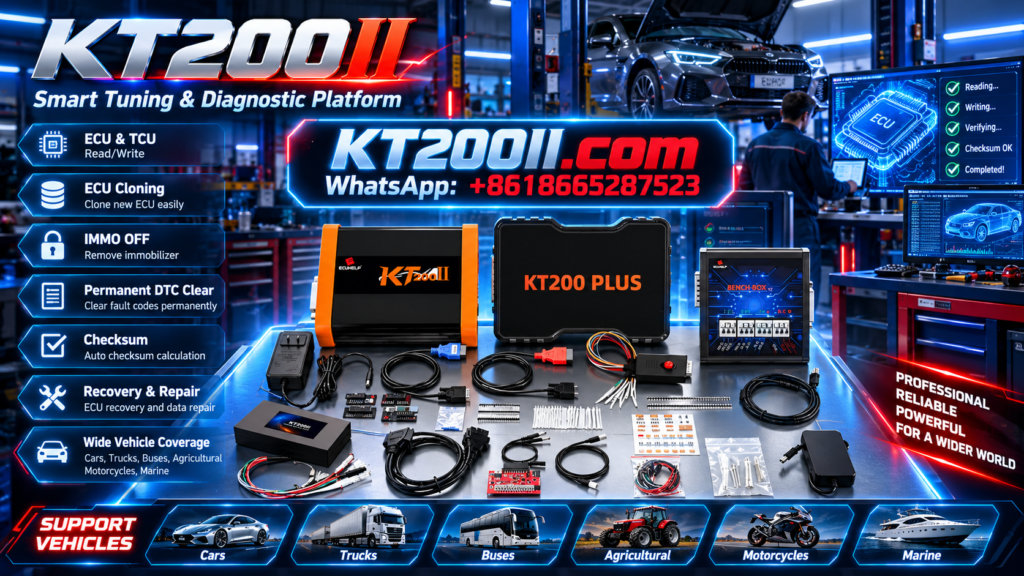
KT200Plus is designed for supported ECU and TCU programming workflows that may include virtual read and write operations. For a broader multi-mode solution, review the official KT200II ECU Programmer.
You can compare supported operation methods through the KT200II Operation Modes page and check software resources at KT200II Software Download.
Buy the Official KT200Plus ECU Programmer
Purchase KT200Plus through the official HELPECU KT200Plus store page. The official ECUHELP team provides product information, software guidance, compatibility assistance, and after-sales support.
For a vehicle or ECU compatibility check, contact WhatsApp +86 18665287523 before beginning the operation.