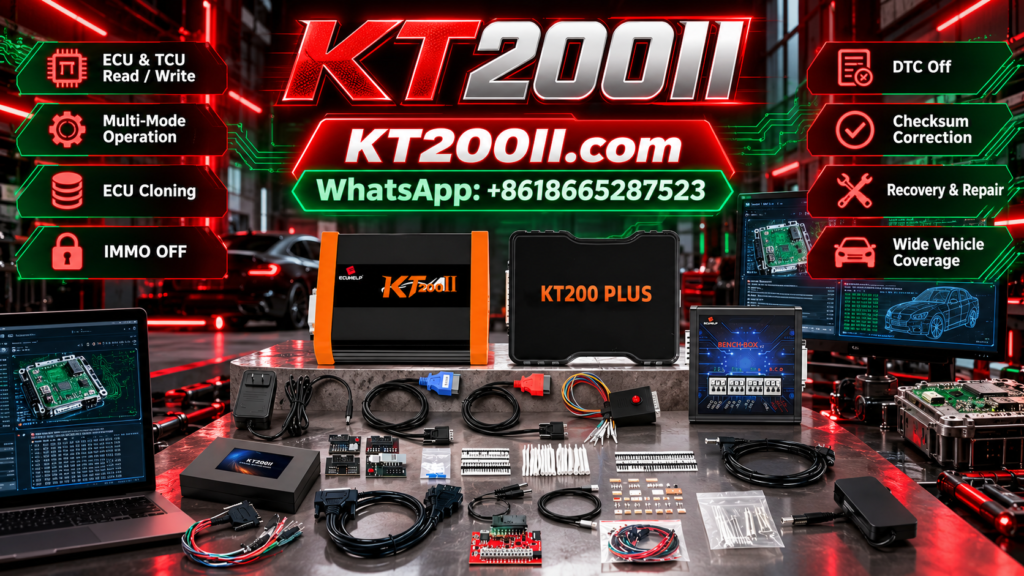
KT200PLUS OFFICIAL WORKSHOP GUIDE | ECU FILE CONTROL & PROGRAMMING VERIFICATION
KT200Plus ECU Data Verification Guide Before and After Programming
Reliable ECU programming is not finished when the software displays a completed message. Professional technicians should verify the original data, selected file, ECU identification, memory size, and final readback result before returning the vehicle or replacement module.
This guide explains a practical KT200Plus ECU data verification workflow for reading, writing, cloning, repair, and recovery operations.
Why ECU Data Verification Matters
An ECU programming job can appear successful while still containing an incorrect file, incomplete readout, mismatched ECU identification, or an unverified final result. A controlled verification process creates clear checkpoints before and after data is changed.
KT200Plus is designed for professional ECU and TCU programming applications. The correct protocol, operation mode, software package, and connection method depend on the exact vehicle and controller.
Before starting, review the official KT200Plus supported vehicles page and confirm the required application.
KT200Plus ECU Data Verification Checklist
| Verification Point | What to Compare | Reason |
|---|---|---|
| ECU identity | Part number, hardware number, software number, processor, and label | Confirms that the selected protocol matches the controller. |
| Original readout | File name, file size, memory area, and read status | Creates a reliable backup before writing. |
| Target file | Correct ECU family, file size, checksum status, and version | Prevents an unrelated or incomplete file from being written. |
| Post-write readback | Final identification and available memory data | Confirms that the ECU responds after programming. |
| Job record | Operation, mode, software version, date, and result | Supports repeat service and customer handover. |
Step 1: Confirm the ECU and Vehicle Information
Record the vehicle brand, model, year, engine, transmission, market, ECU or TCU manufacturer, and complete part number. Take clear photographs of the ECU label and connectors.
- Record the exact ECU or TCU type.
- Note the processor or MCU marking when visible.
- Photograph all labels and connector positions.
- Separate the original unit and replacement unit records.
- Do not select a protocol using only the vehicle name.
The same vehicle model may use different controllers or software versions. Exact identification is the first data verification step.
Step 2: Read and Protect the Original Data
Whenever the supported protocol allows reading, create an original backup before writing any modified or cloned file. Save the file in a dedicated job folder and keep it unchanged.
| File Record | Recommended Details |
|---|---|
| Original file name | Customer reference, ECU number, date, and original status |
| File size | Record the exact size reported after reading |
| Read method | OBD, Bench, Boot, JTAG, or another supported method |
| Backup location | Local service folder and a separate backup location |
Never edit the only copy of the original readout. Make a working copy before calibration, cloning, or file comparison.
Step 3: Verify the Target Programming File
Before writing, compare the target file with the ECU identification and original readout. The file should belong to the same ECU family and match the expected memory area.
- Confirm the target file name and customer reference.
- Compare file size with the original readout.
- Confirm the software or calibration version.
- Check the supported checksum status where applicable.
- Make sure the target file is not an accidental older backup.
- Save the final target file as a separate copy.
Step 4: Confirm Software and Driver Status
Use the official KT200Plus software installer and dongle driver package. The official download center lists the KTflash installer and the dongle driver for Windows computers.
Visit the KT200Plus Software Download page to obtain the correct files. Install the driver first when required, then install the main KT200Plus software.
- Confirm that the dongle is recognized by the computer.
- Use the software package intended for KT200Plus.
- Record the installed software version in the job file.
- Do not mix files from unrelated programming tools.
Step 5: Verify the Connection Method
The selected connection method must match the documented ECU procedure. KT200Plus applications may require OBD, Bench, Boot, or another supported method depending on the controller.
| Mode | Verification Focus | Before Operation |
|---|---|---|
| OBD | Vehicle diagnostic connector and stable vehicle power | Confirm ignition and battery support requirements. |
| Bench | Power, ground, communication pins, and harness orientation | Check the ECU connector and bench wiring twice. |
| Boot | Processor, boot point, service pin, and power sequence | Follow the exact controller-specific procedure. |
Step 6: Monitor the Programming Operation
During a read or write operation, keep the power supply, ECU, cables, and dongle stable. Do not disconnect the device simply because the progress bar pauses briefly.
- Do not switch off the vehicle ignition.
- Do not move the bench harness or ECU.
- Do not remove the USB dongle during communication.
- Keep the power supply stable for the full operation.
- Wait for the software to display the final status.
If communication stops, record the exact message and operation stage before attempting recovery.
Step 7: Perform Post-Write Data Verification
After the write operation is reported as complete, keep the connection active until the software finishes its available verification process. Where supported, read the ECU identification again and compare it with the expected result.
- Confirm the software reports completion.
- Check the ECU identification again.
- Compare hardware and software numbers.
- Check the final file or readback size.
- Review checksum or integrity status when available.
- Save screenshots and final results in the job folder.
For customer vehicles, complete a diagnostic scan and functional check according to the repair procedure before delivery.
Common KT200Plus Data Verification Problems
The original and target files have different sizes
Stop and confirm whether the files represent different memory areas, incomplete reads, or different ECU versions. Do not write until the difference is understood.
The ECU identification does not match the label
Check the selected protocol, connector, vehicle configuration, and ECU software version. A mismatch may indicate an incorrect module or connection.
The software reports completion but the ECU does not respond
Maintain the correct power and connection setup, then review the final status and recovery procedure. Do not repeatedly write unknown files.
The dongle is not recognized
Reinstall the official dongle driver, reconnect the device, and confirm that the KT200Plus software package is installed correctly. Visit the official software page if a fresh installer is needed.
KT200Plus or KT200II for a Professional Workshop?
KT200Plus is suitable for technicians who need its supported ECU and TCU programming workflows. If your workshop also requires a broader multi-mode ECU programming platform, compare the official KT200II ECU Programmer.
Review the KT200II operation modes, KT200II software resources, and KT200II support list before selecting a combined workshop setup.
Buy the Official KT200Plus ECU Programmer
Purchase KT200Plus through the official HELPECU KT200Plus store page. The official store provides product information, global ordering, and ECUHELP technical support.
For compatibility questions, software installation, or data verification assistance, contact WhatsApp +86 18665287523 before starting the operation.